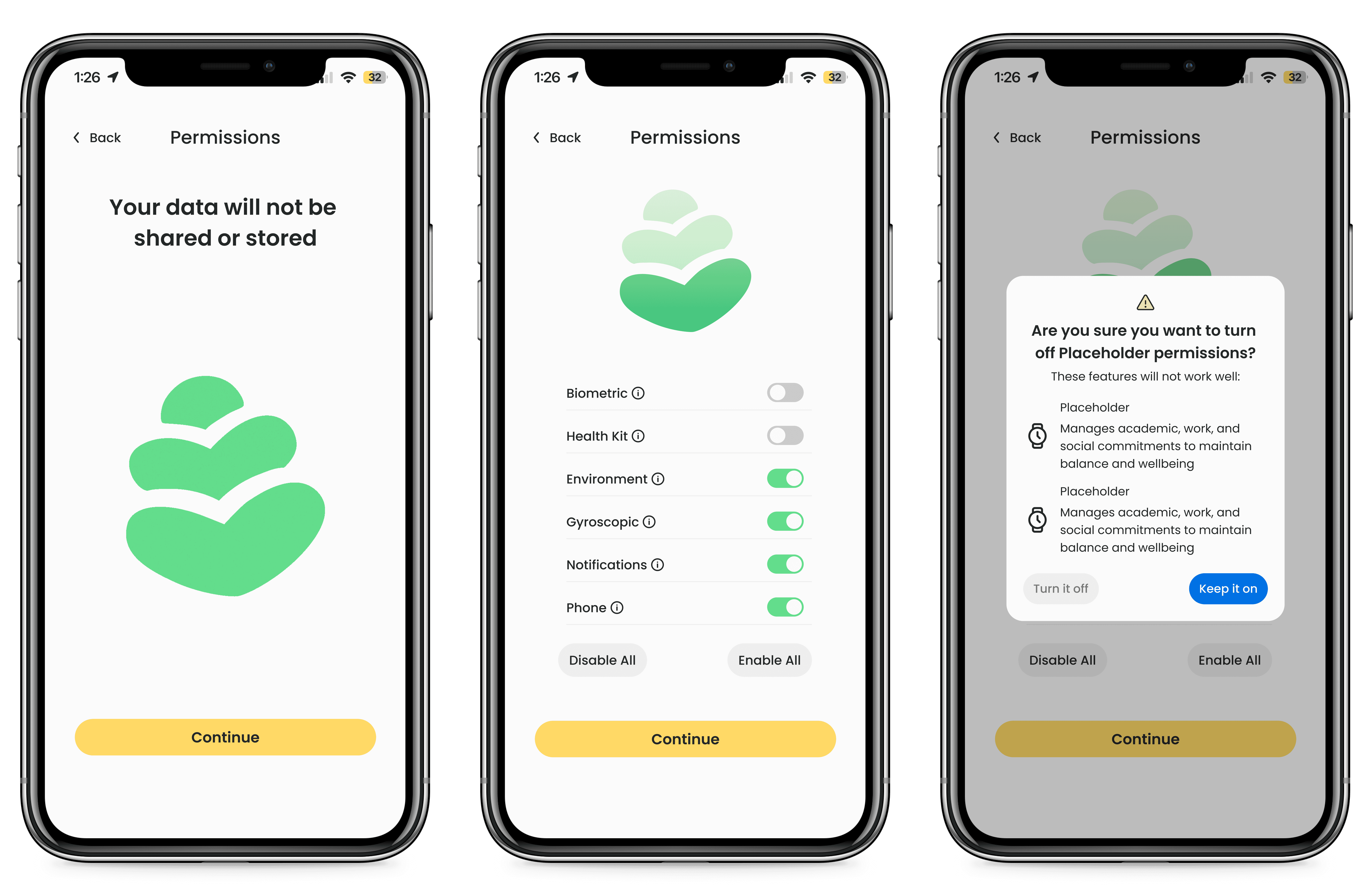
Evergreen Data Permissions
Role
UI Designer
Date
Spring - Fall 2025
Timeline
30 weeks
Team
3 Des, 2 Devs, 2 Graphics, 1 PM
Evergreen is a $16 million mobile app project using passive sensor data and AI to provide proactive wellbeing support for Dartmouth students. It aims to catch mental health struggles before they become clinical.
THE CHALLENGE
To conceptualize and design the Evergreen app & onboarding.
This case study focuses on the data permissions aspect of onboarding.
I designed transparent data permission screens to clarify Evergreen's use of passive sensing data and build student trust
My Iterations
ROUND 1
Research based first iterations
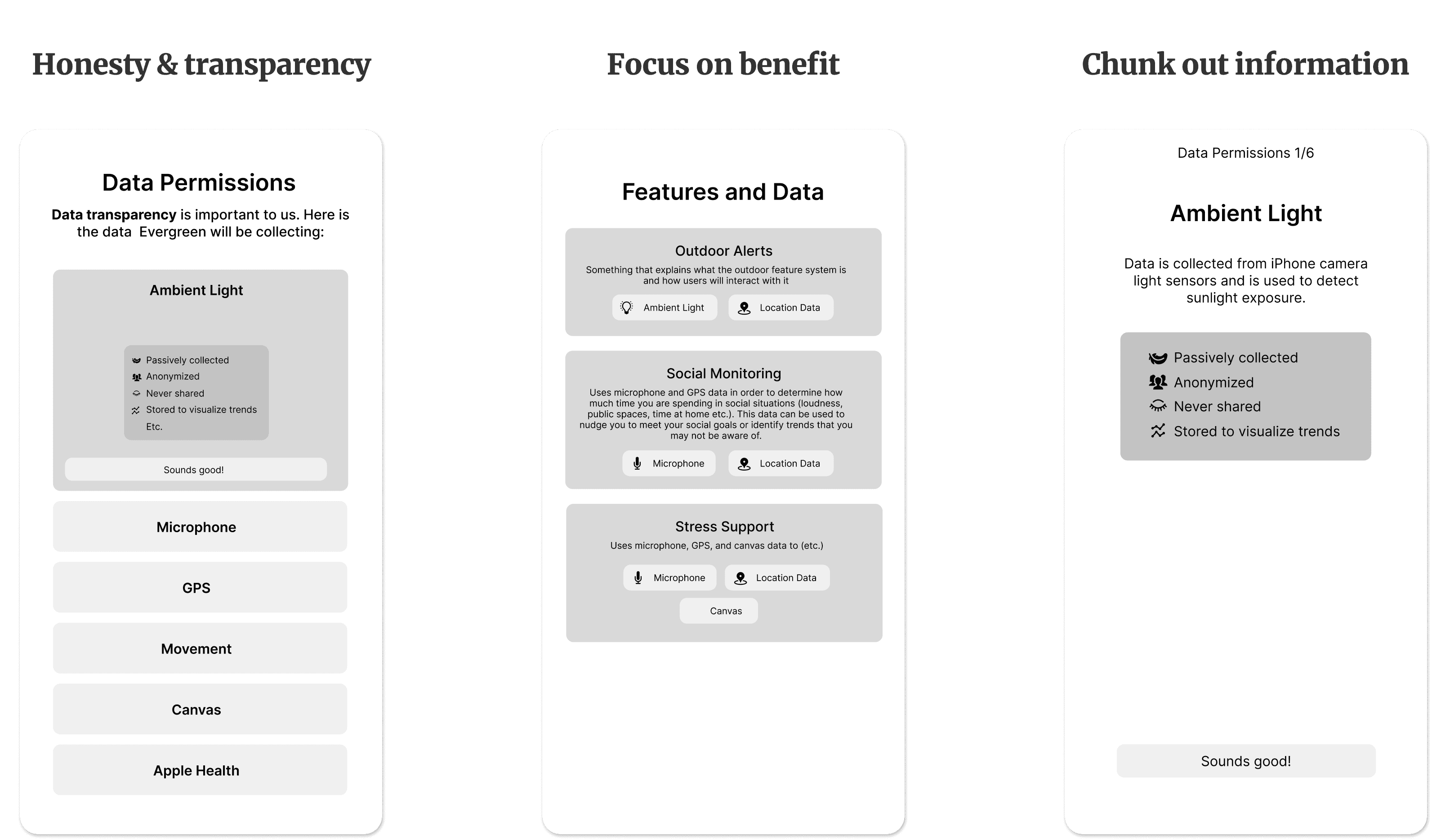
I found that being transparent, focusing on the benefit to the user, and showing information in chunks were common themes among the data-sensitive privacy pages I researched.
ROUND 2
Combining screens to satisfy research insights
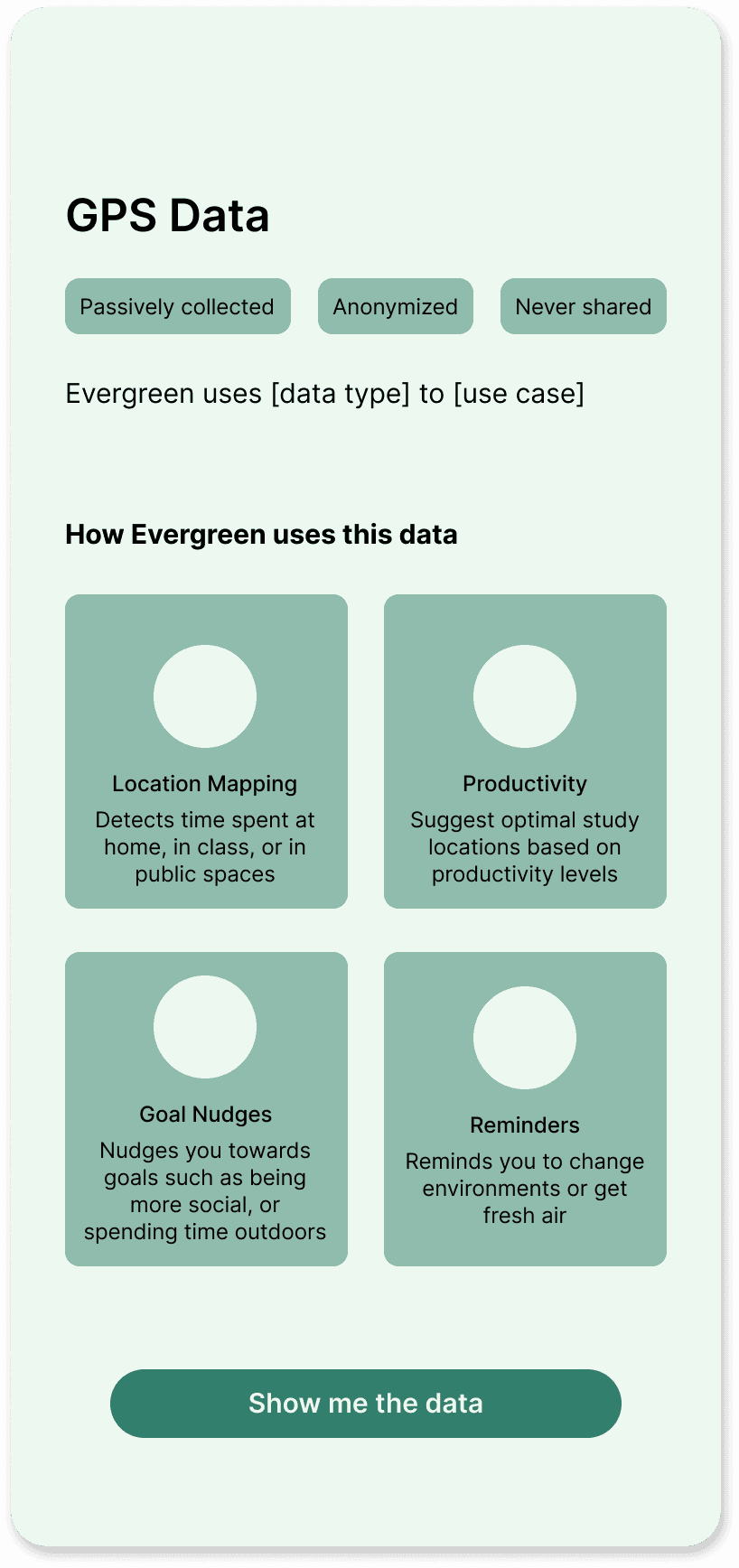
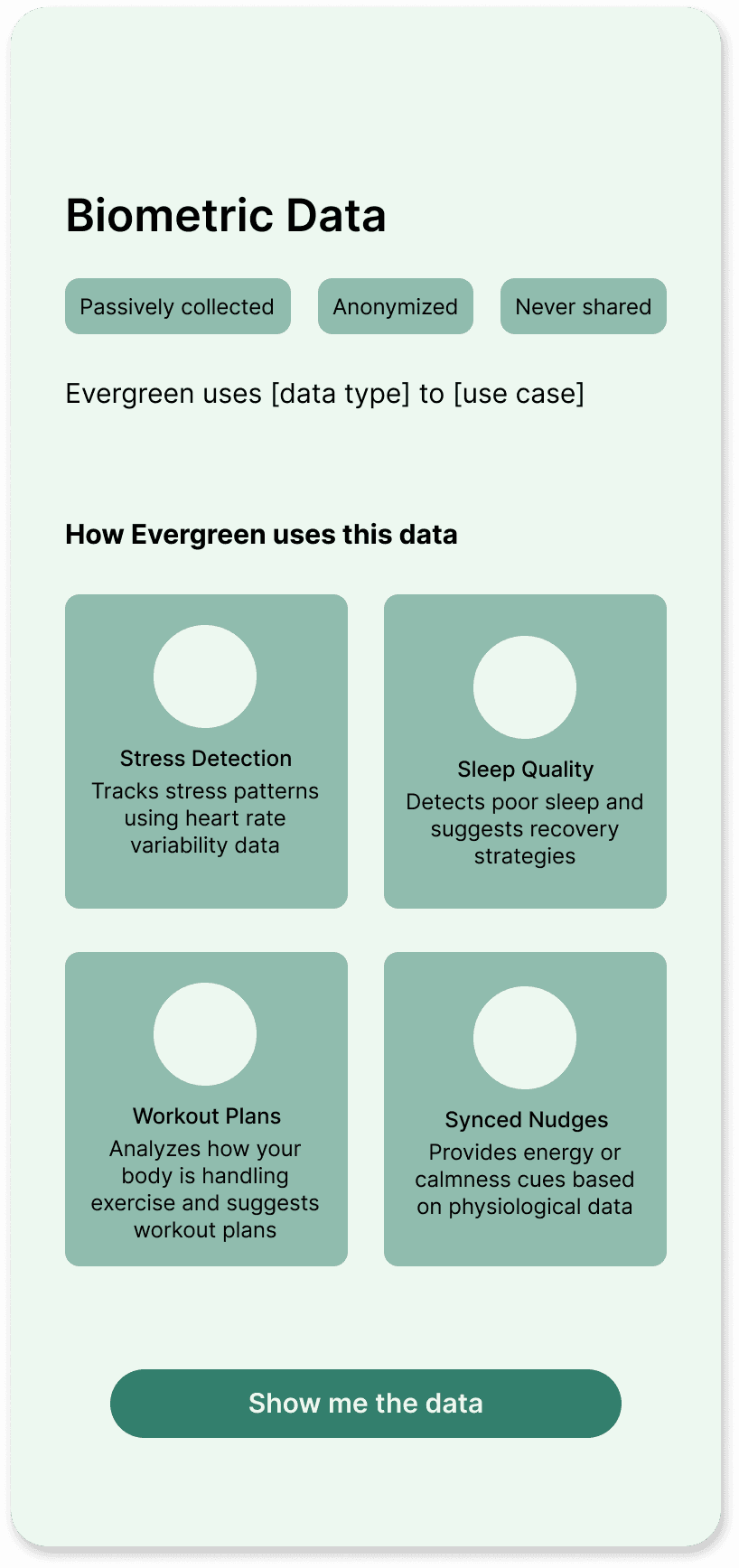
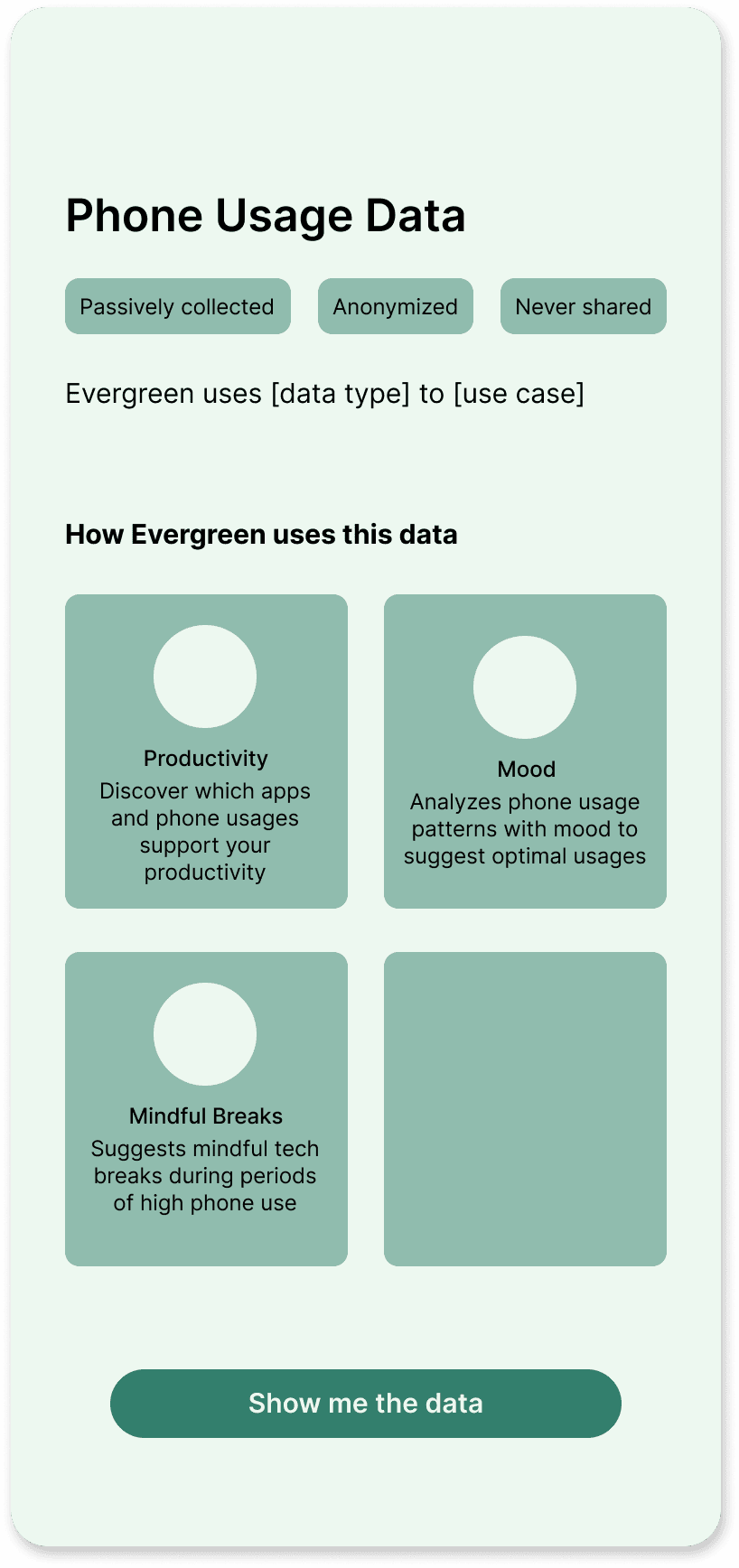
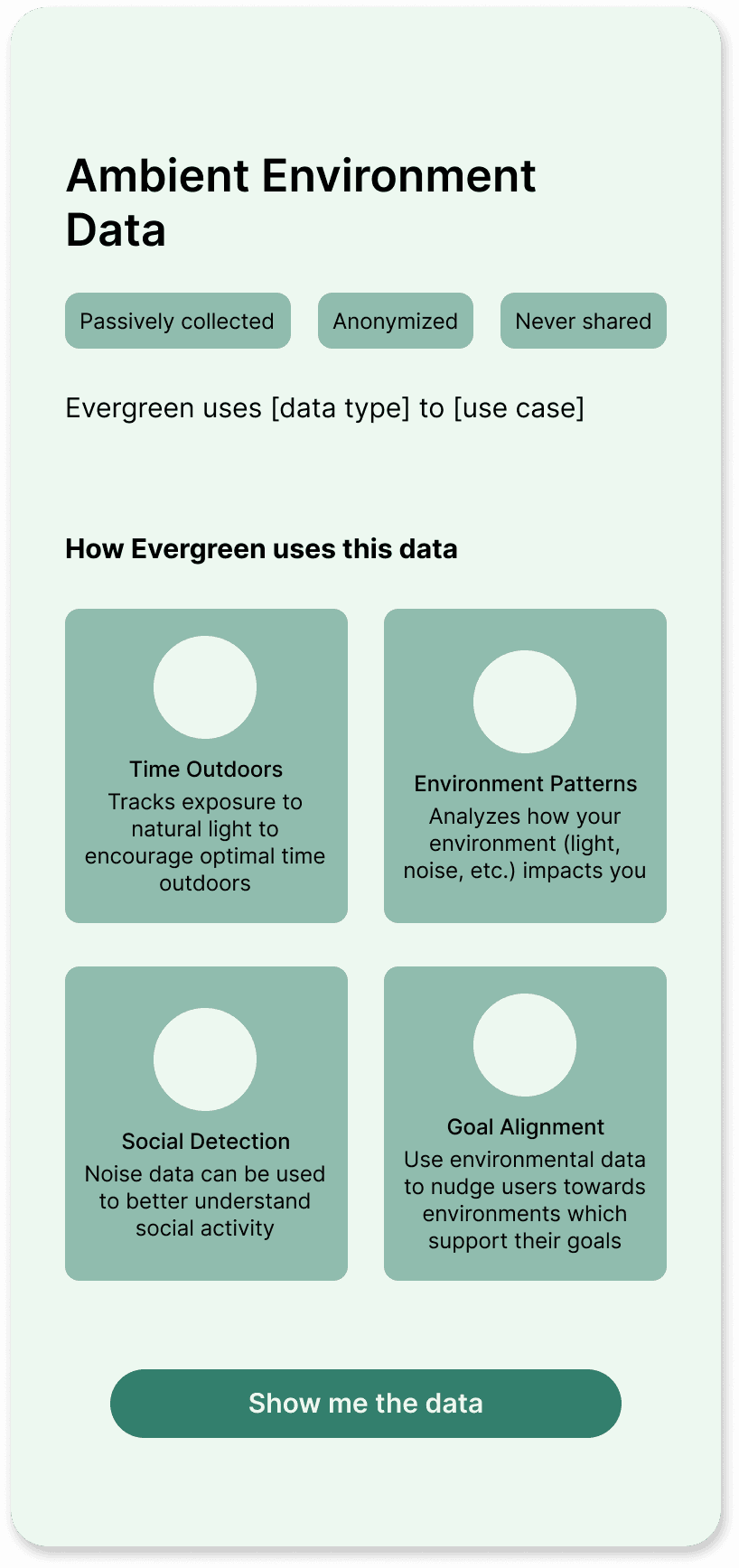
The partners liked organizing the permissions by data type (i.e. GPS data). To satisfy my research findings, I iterated on the design so the benefit to users was clear and information was chunked out.
Note: With the ambiguity of the project, no one knew what features we were designing for. So, while I was designing the permissions pages, I was also using screens as a feature brainstorming hub.
Scroll to read all my feature ideas
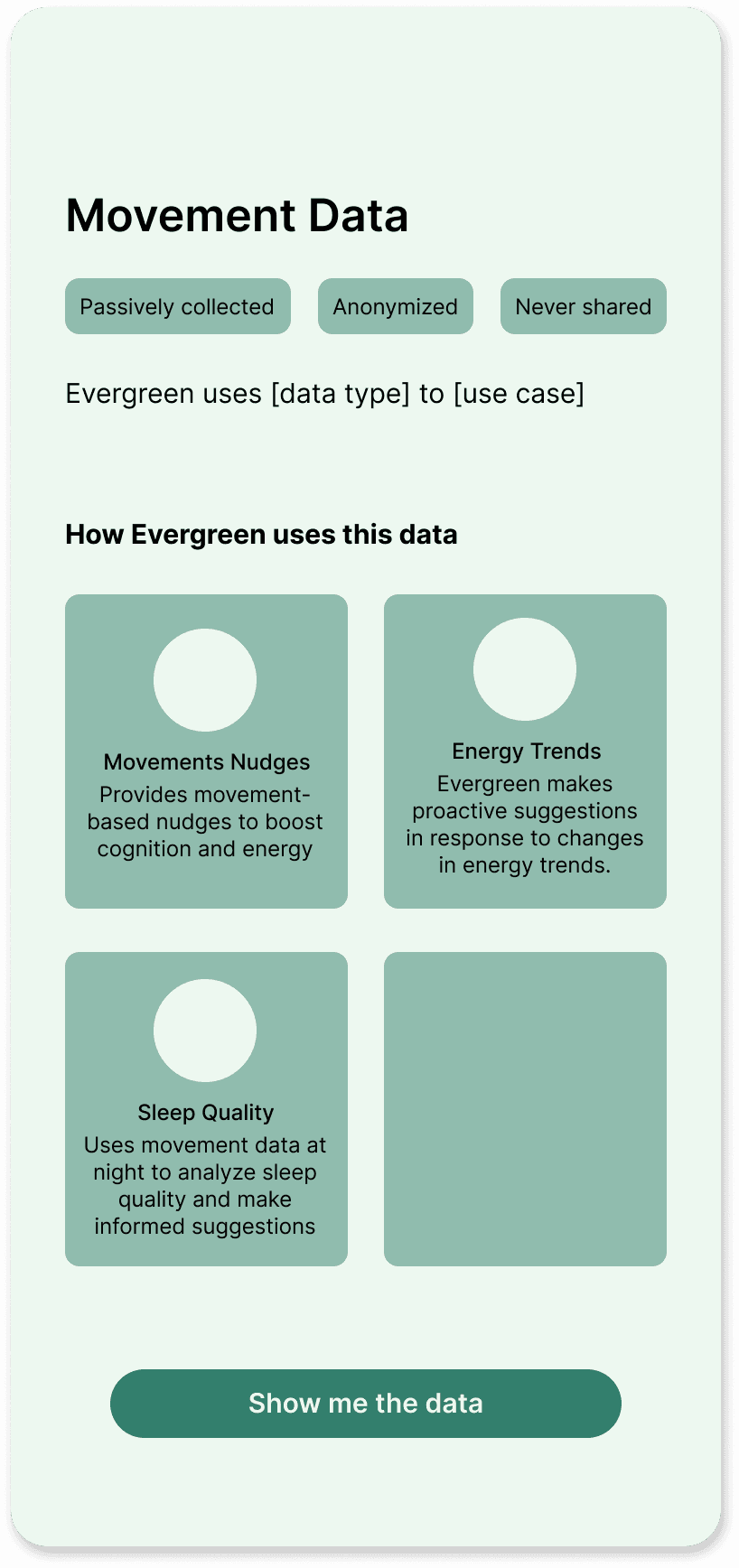
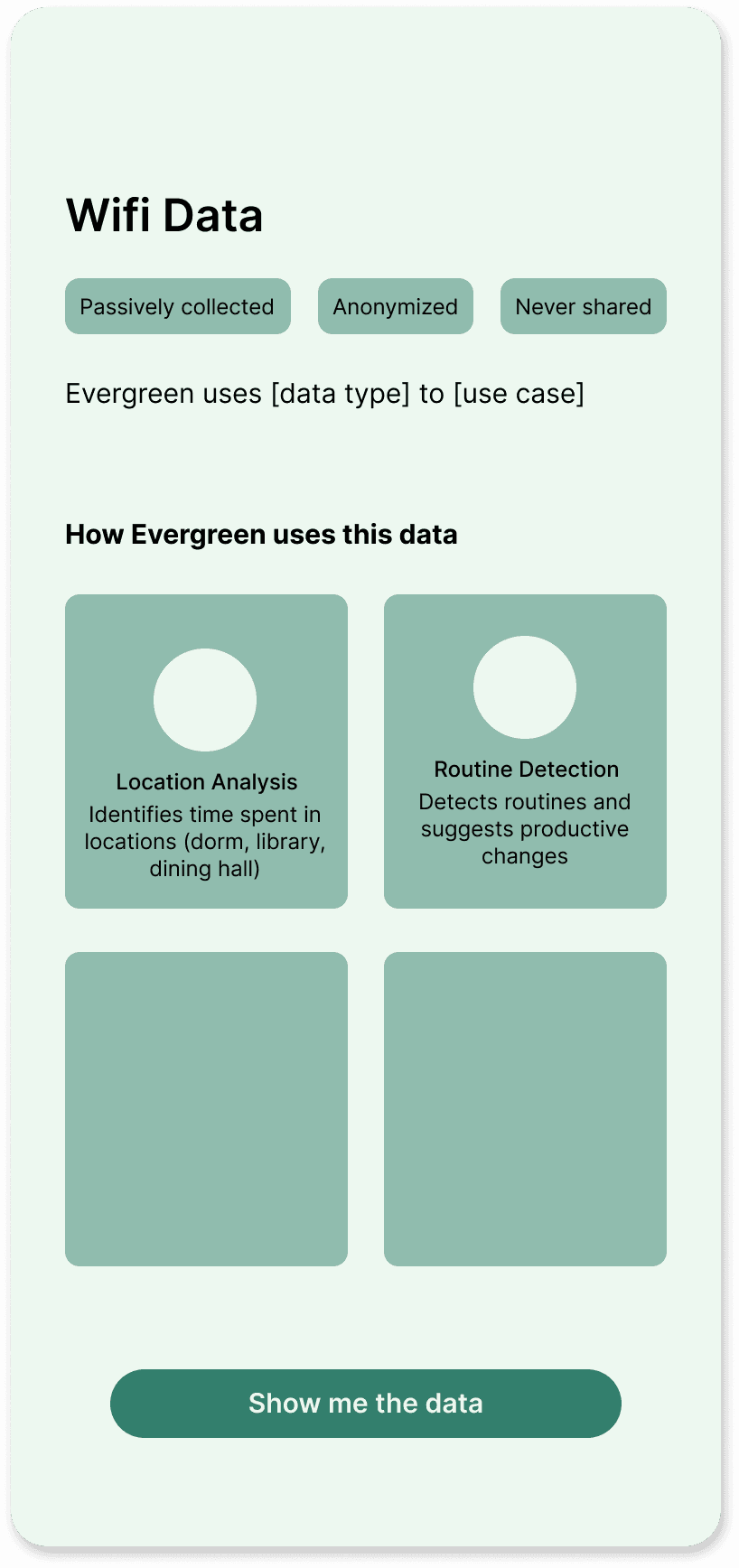
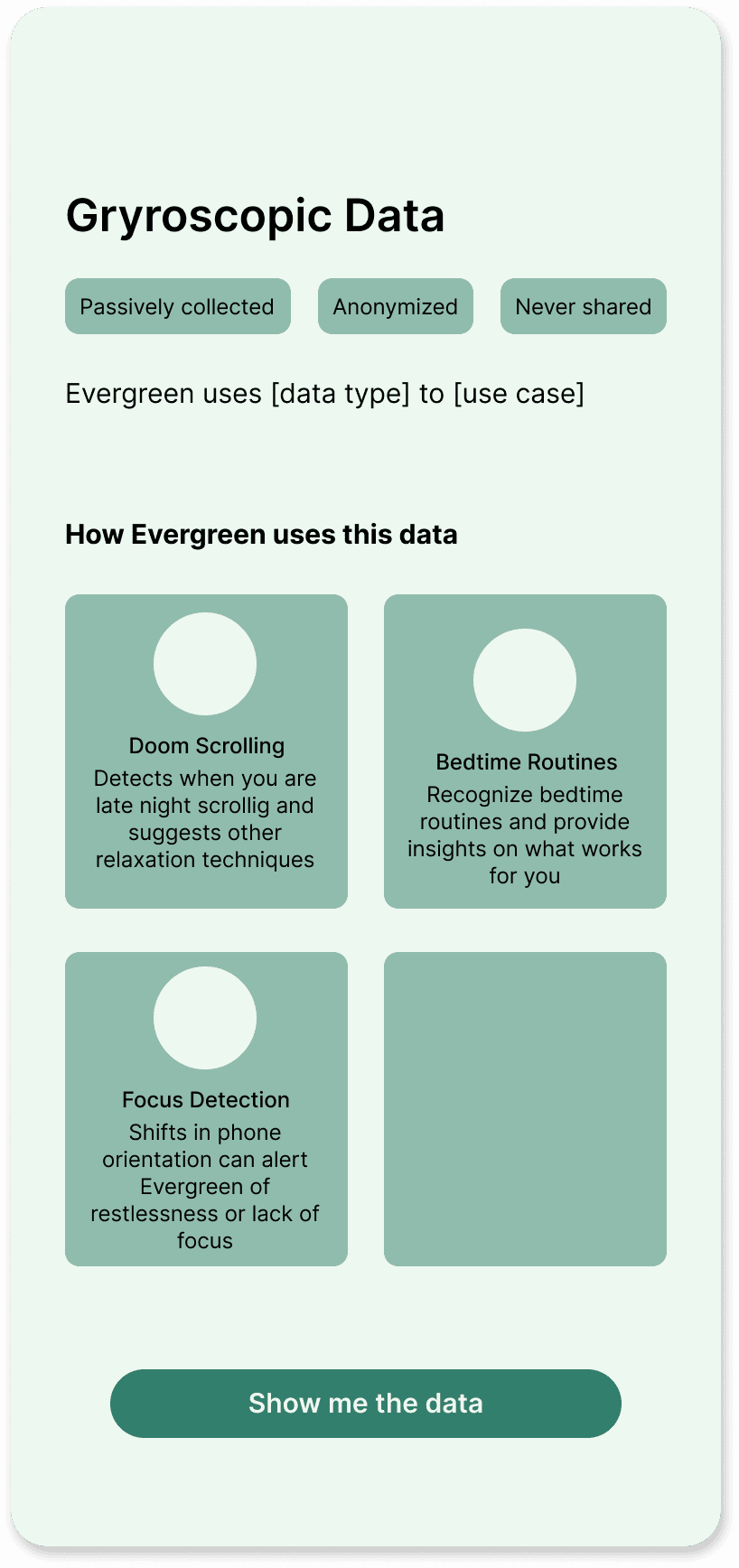
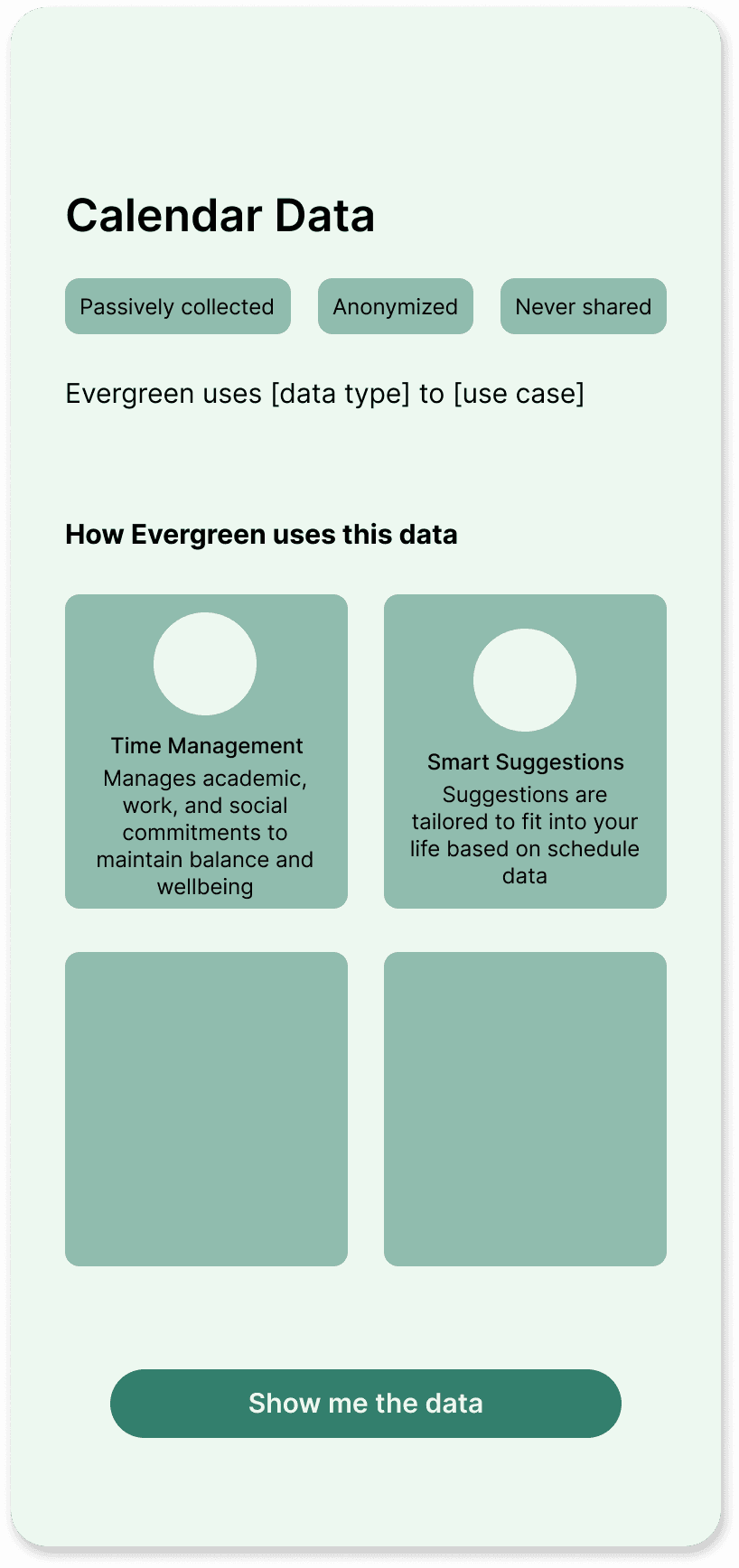
ROUND 3
Using interactive tiers & imagery to encourage permissions
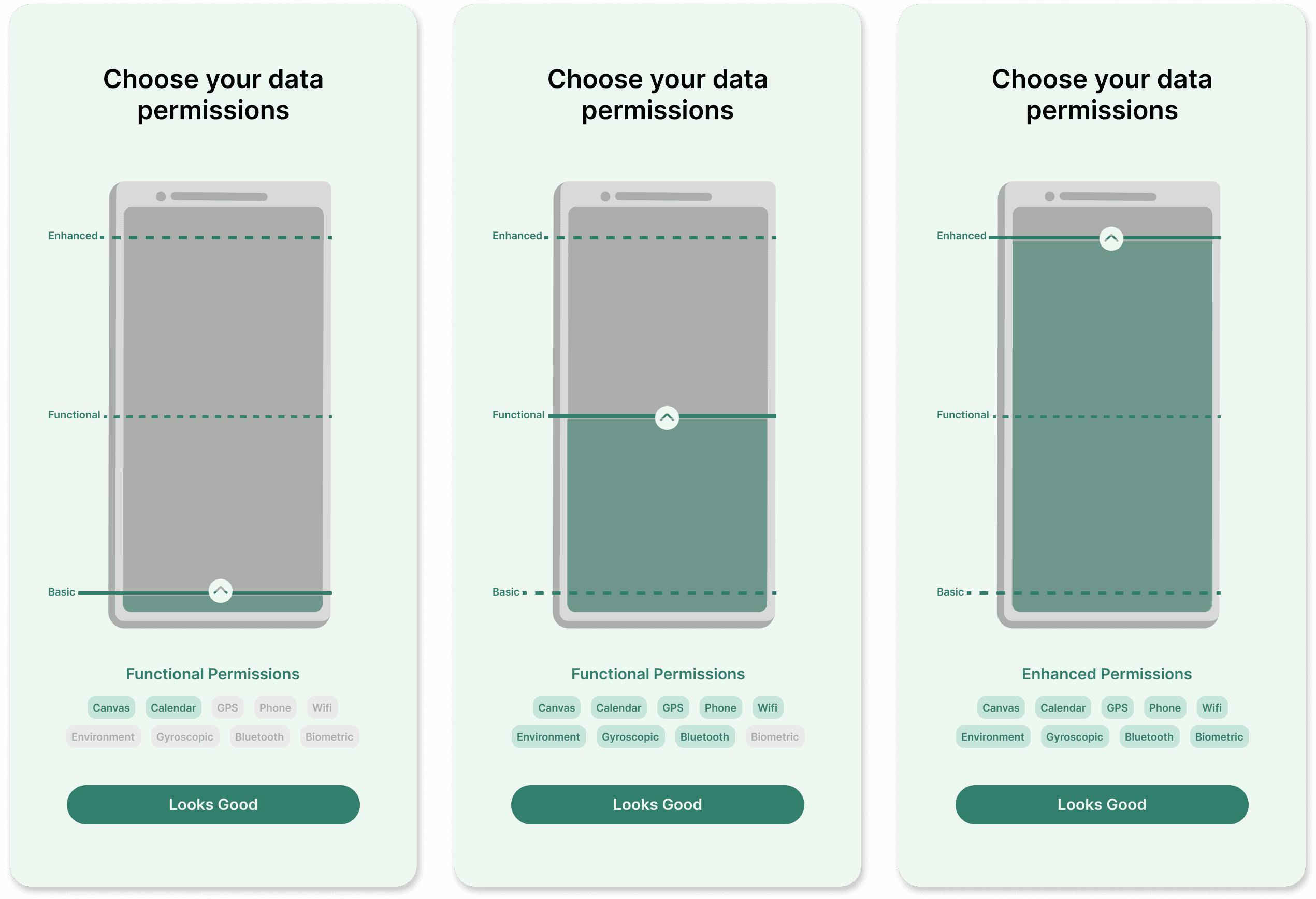
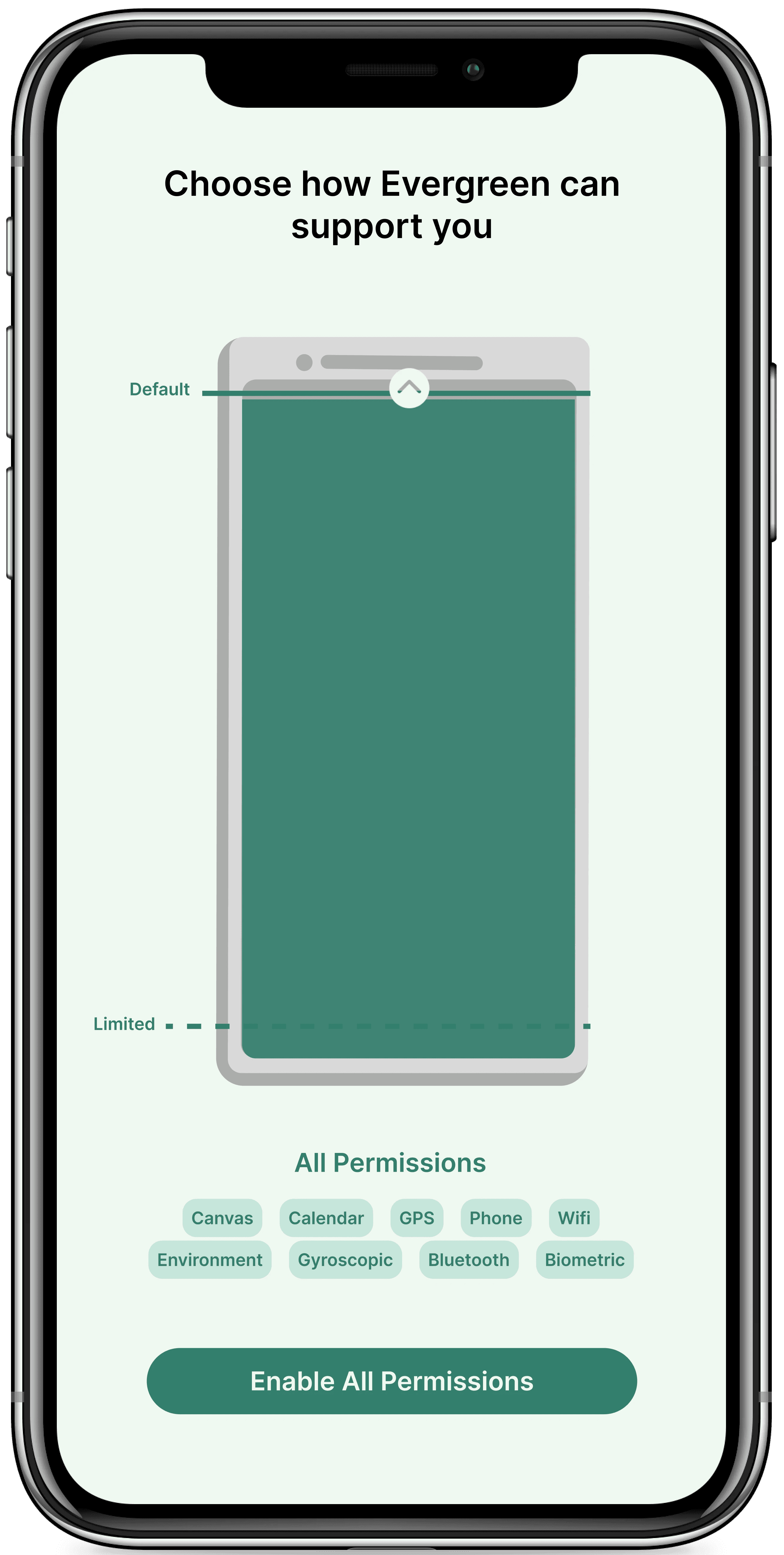
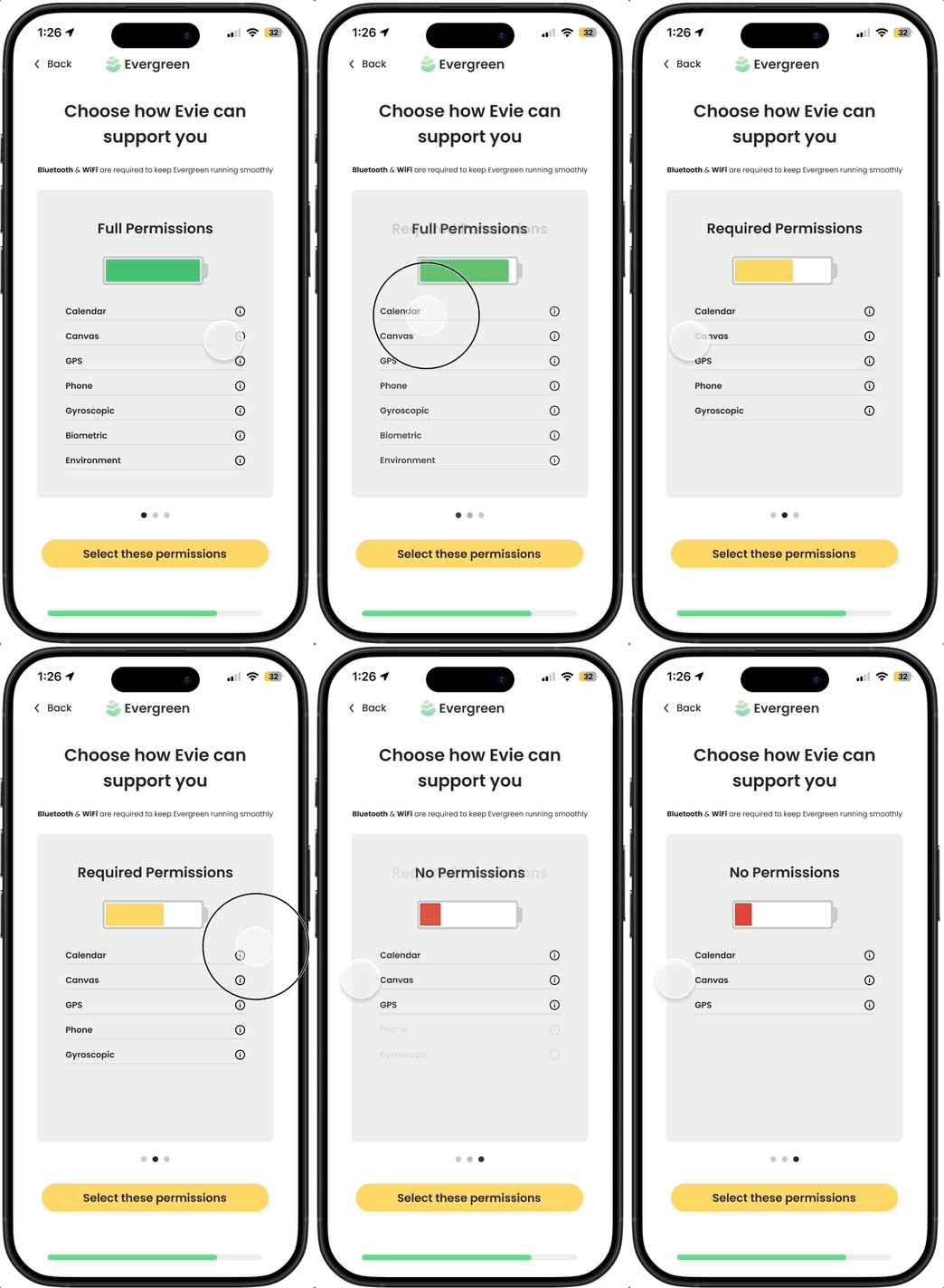
I created tiers of permissions to reduce the cognitive load of deciding which permissions to enable. I designed an interactive sliding permission meter with phone battery imagery to convey the idea that the more permissions were enabled, the more "powered up" Evergreen would be.
Interactive permissions screen with 3 tiers
ROUND 4
Iterating on details
Changing to two tiers: During a team meeting, we worried that creating 3 tiers would lead users to default to the middle option. Thus, I changed the design to only incorporate 2 tiers and default to the higher tier.
Microcopy: I made subtle language edits to focus on how Evergreen supports users to develop trust.
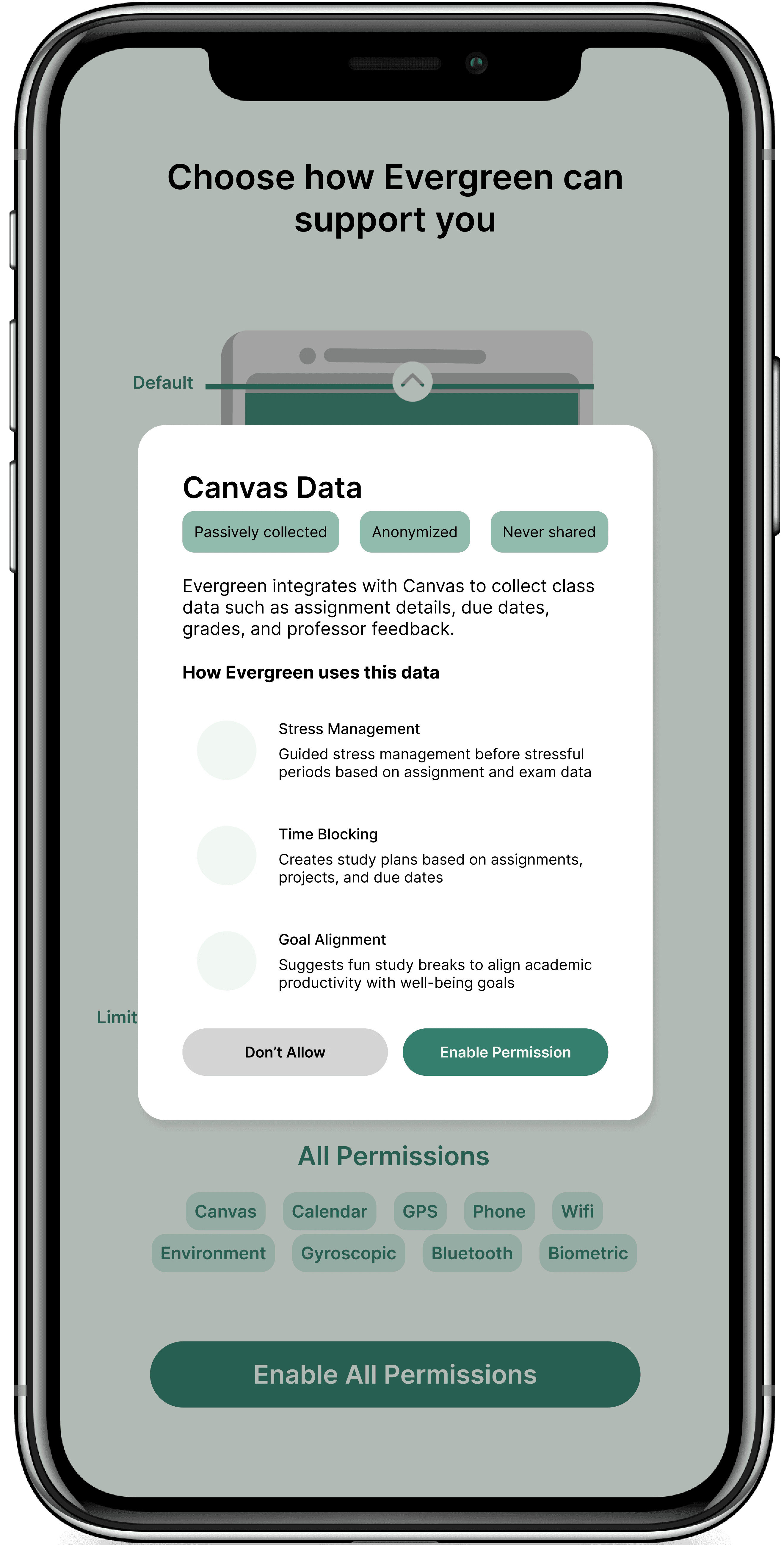
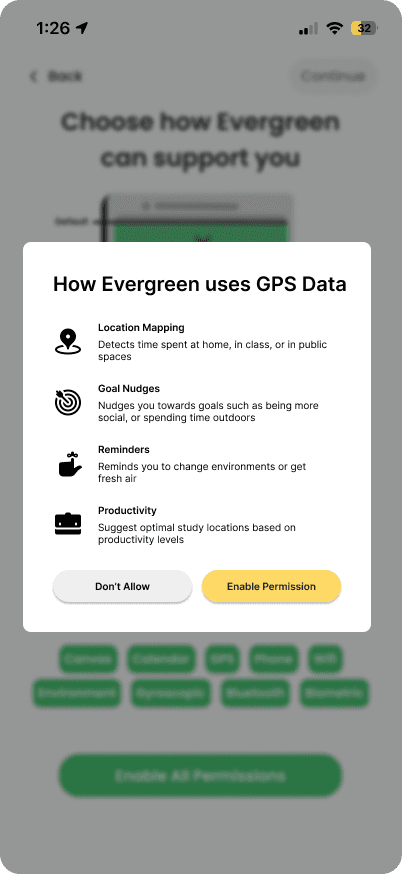
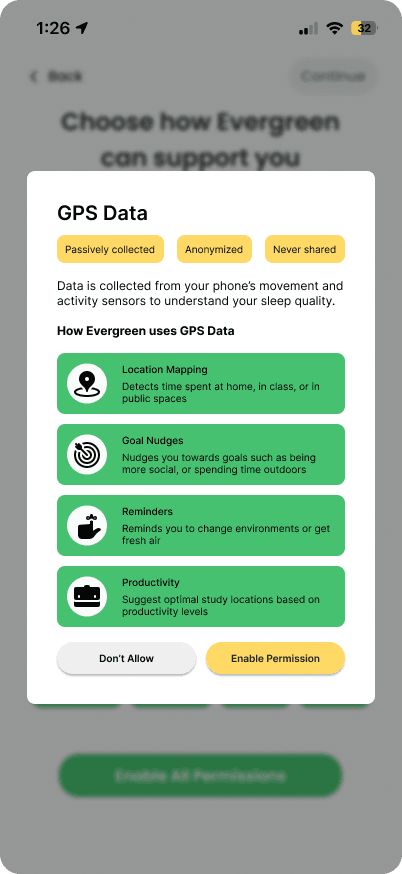
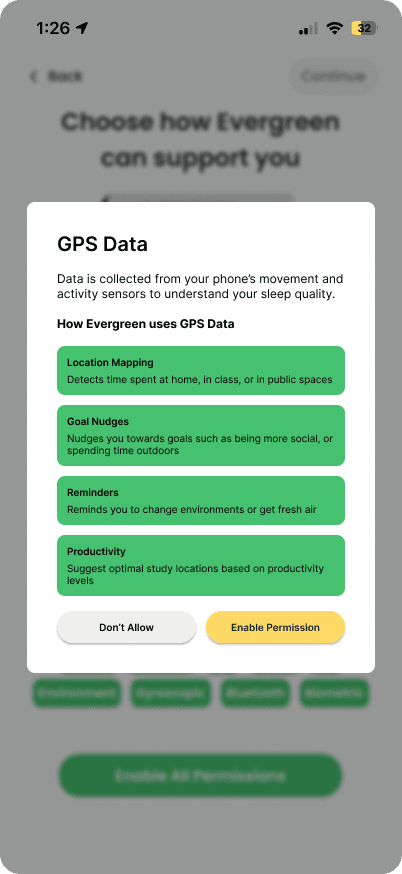
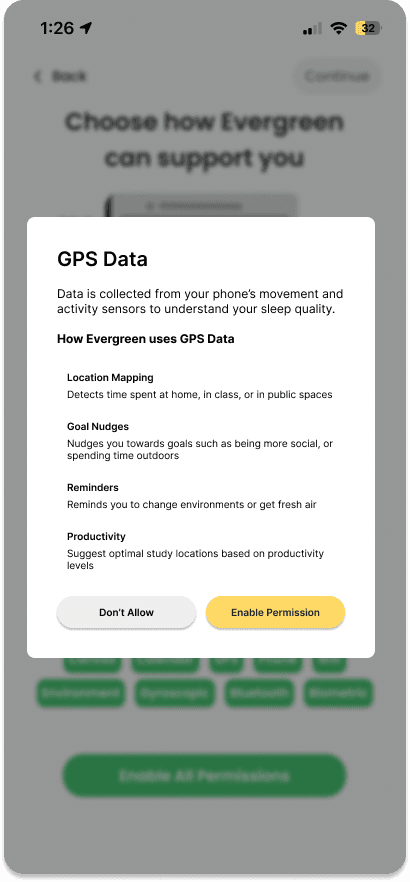
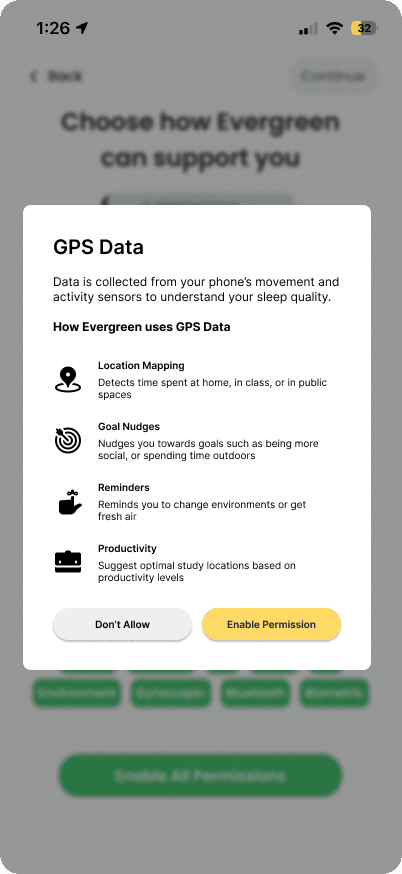
Incorporating pop ups: Following feedback from an external design mentor, I turned my data-focused screens into pop ups to bring in more of my original designs' transparency.
Updated with two tiers, new microcopy, and data pop ups
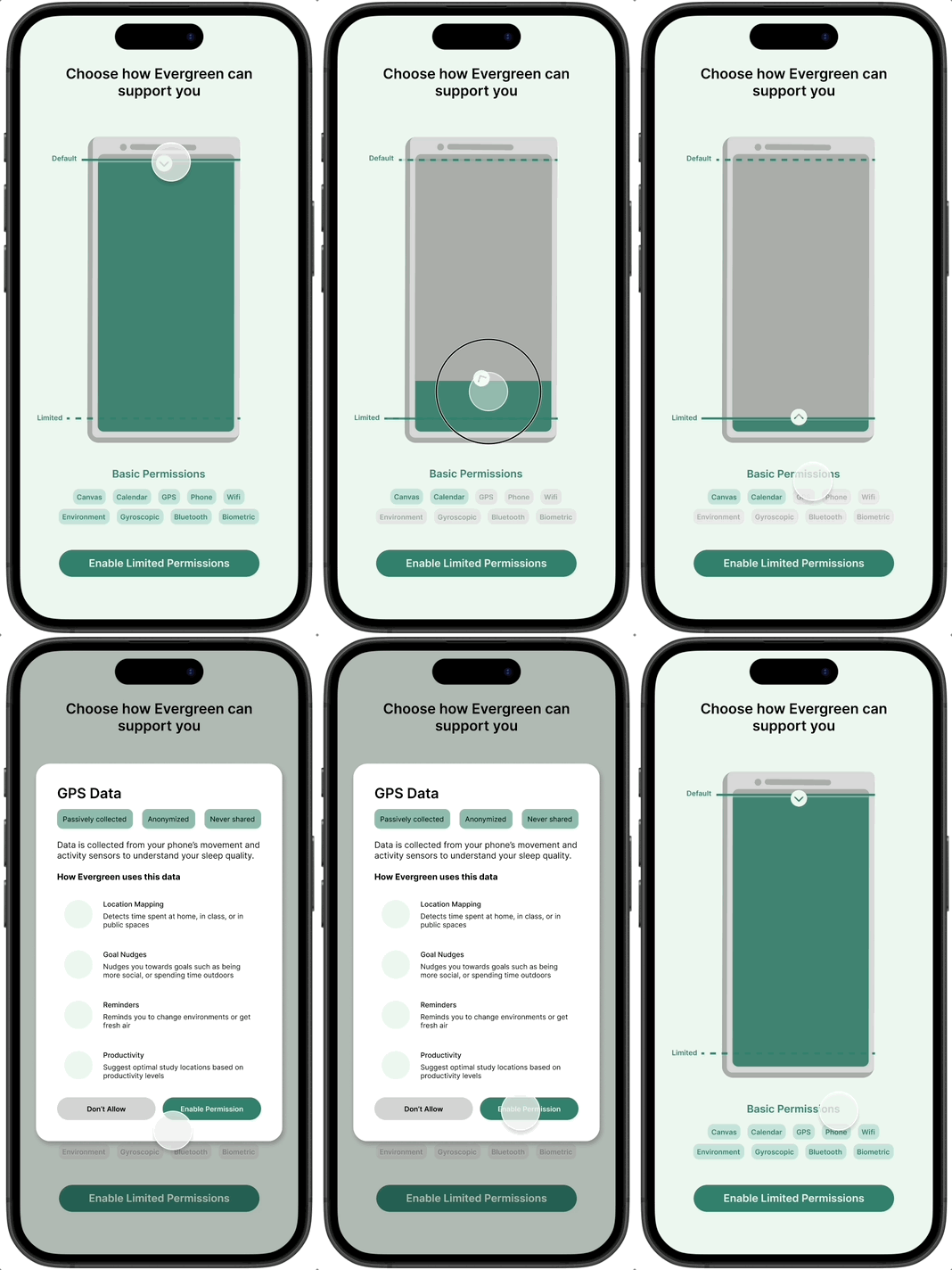
User testing reveals battery interaction is not intuitve
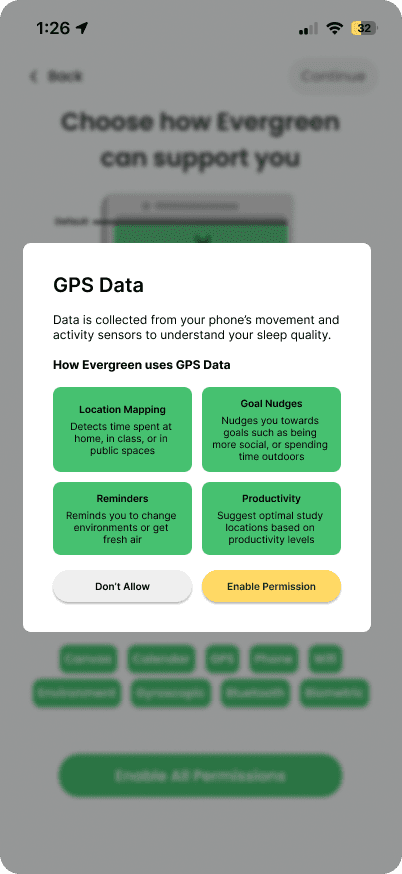
A majority of users preferred the simplest pop up (highlighted in green). We also found the battery screen interaction was confusing for new users.
Scroll to see all data overlay iterations
ROUND 5
Scrapping the slider design after user testing
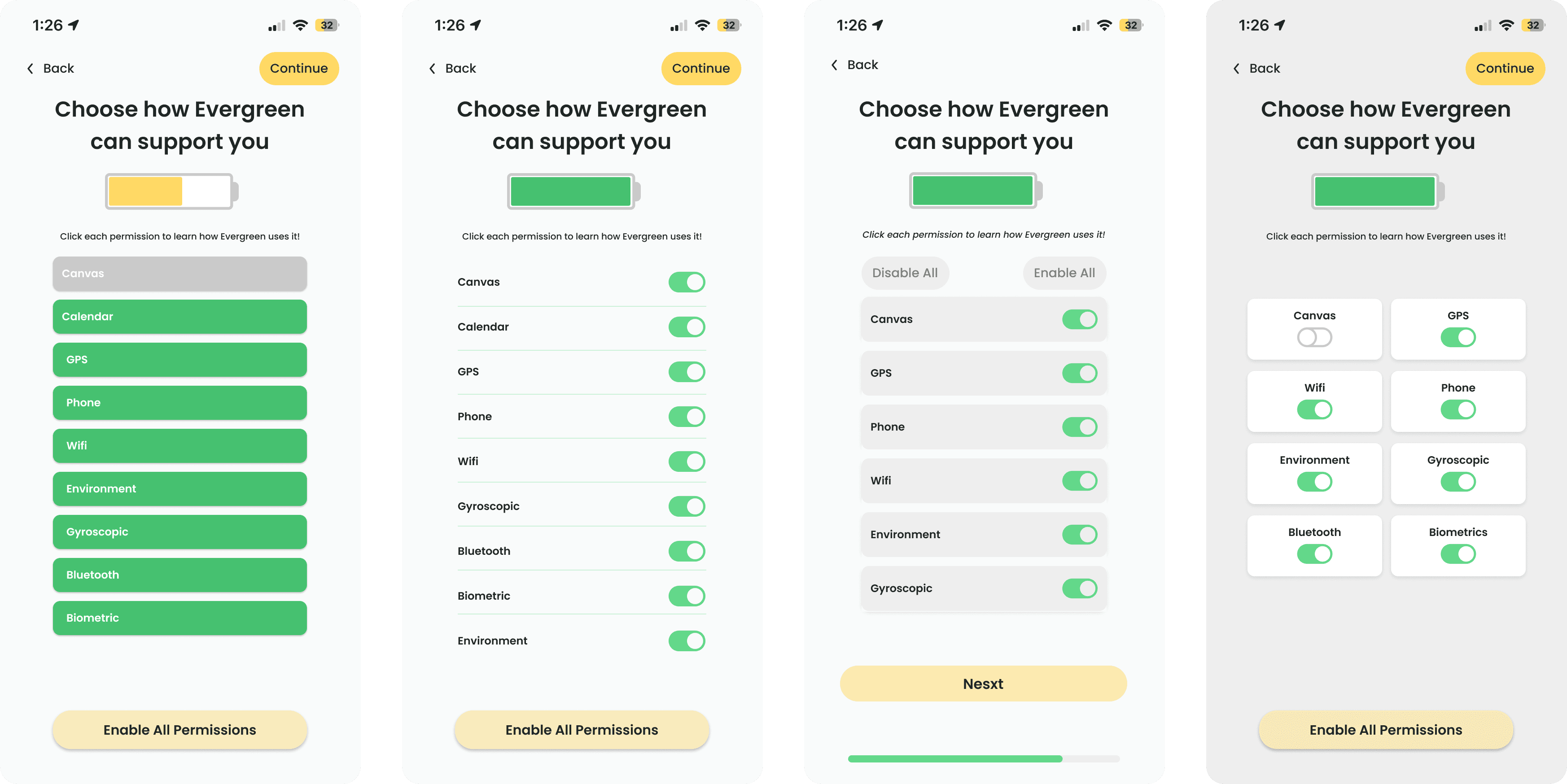
Discovering that the permissions screen was unintuitive to users was disappointing considering the past term of work I'd put into it. However, I overhauled the sliding battery visual and began iterating on new ways we could design an interactive, yet intuitive, permissions screen.
I wanted to emphasize the data types over the interactive battery component. So, I shrunk the battery to make it a visual indicator rather than the core interaction. Then I made each permission much larger and easier to toggle.
Permissions screen iteration with less emphasis on the battery visual
ROUND 6
More user testing reveals new data cards do not look clickable
After the permissions slider pivot, I learned to run user testing often. This gave me valuable constructive feedback early on in designs.
When I gave my screens to users to test, 0% clicked on the data cards to open the popup. Since the whole goal in shrinking the battery was to encourage opening these popups, this was an issue.
I turned to familiar design systems. I added the universal “i” button which was a clear indicator of more information. This made the design much simpler and in user testing, 100% of users selected the “i” button or stated that they knew where to click if they wanted to find more information.
Drop shadows look confusing
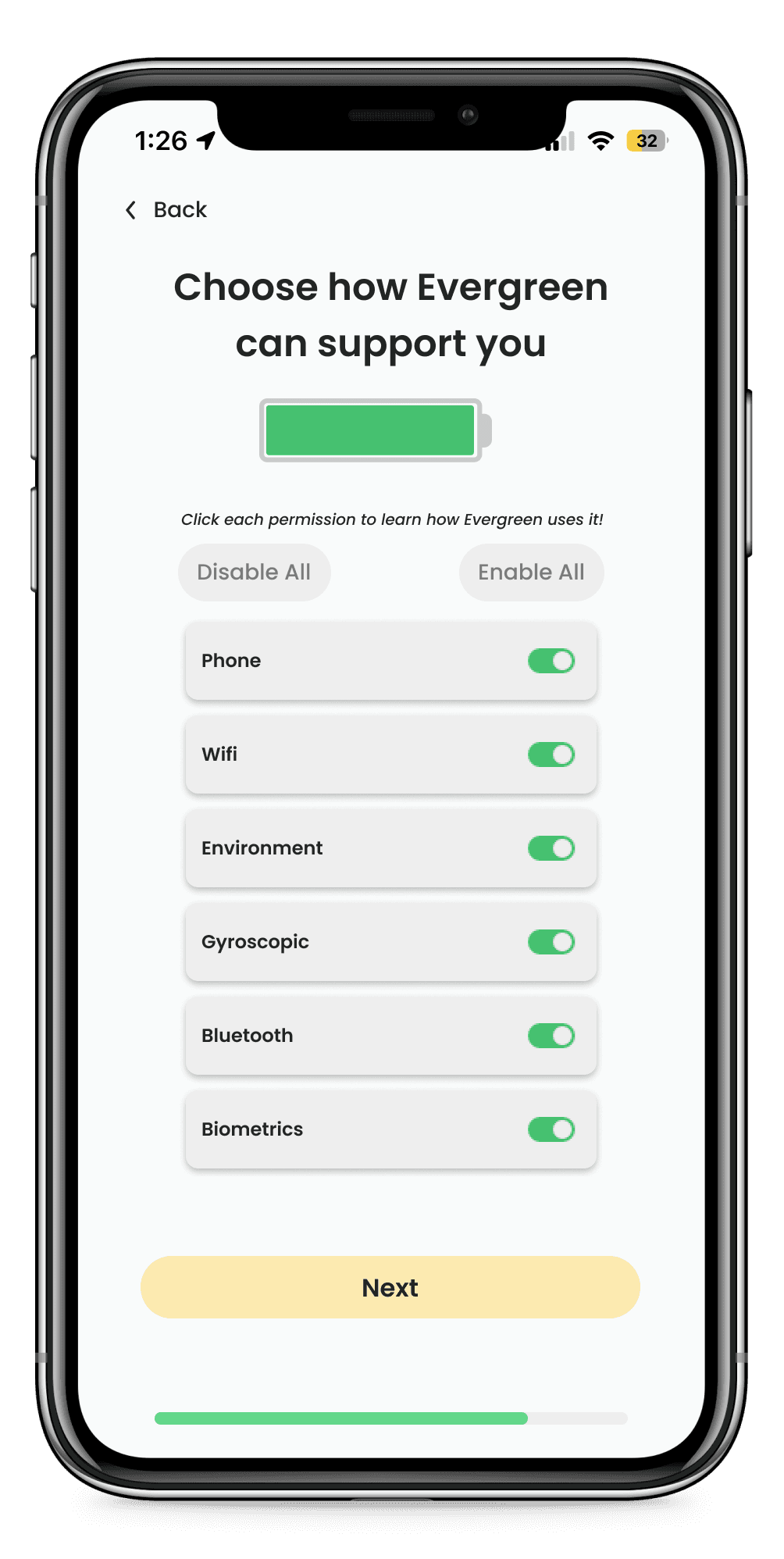
"i" clearly indicates more info
ROUND 7
Adjusting design choices to fit in toggle design
Required permissions
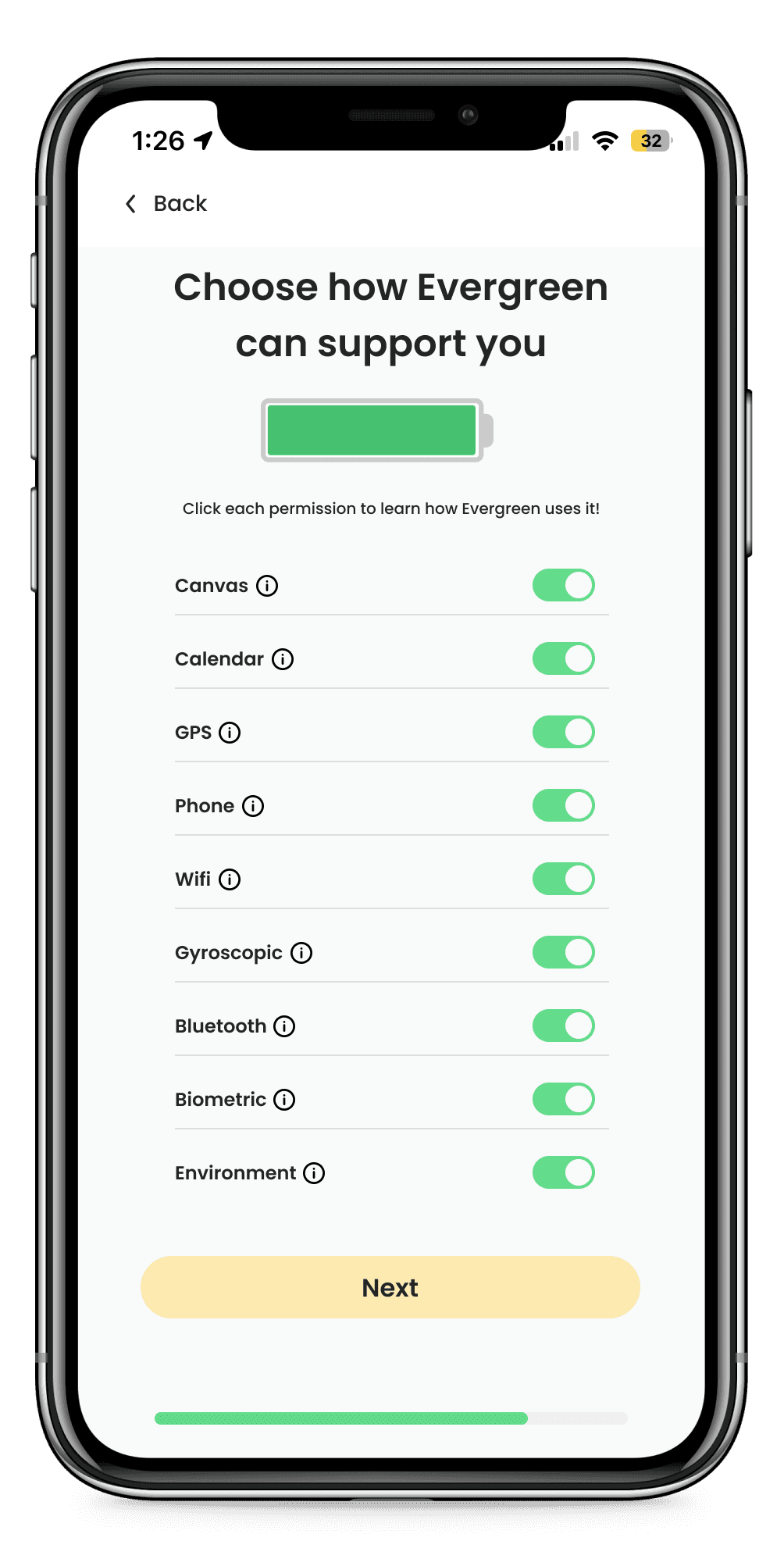
Removing the slider feature made it hard to show required permissions. I experimented with different ways to communicate which permissions were required, and grappled with transparency vs functionality. Ultimately in a conversation with partners, we decided to omit required permissions from this screen and simply have users approve the native permission alerts
Two ways to communicate required permissions
Reducing cognitive load
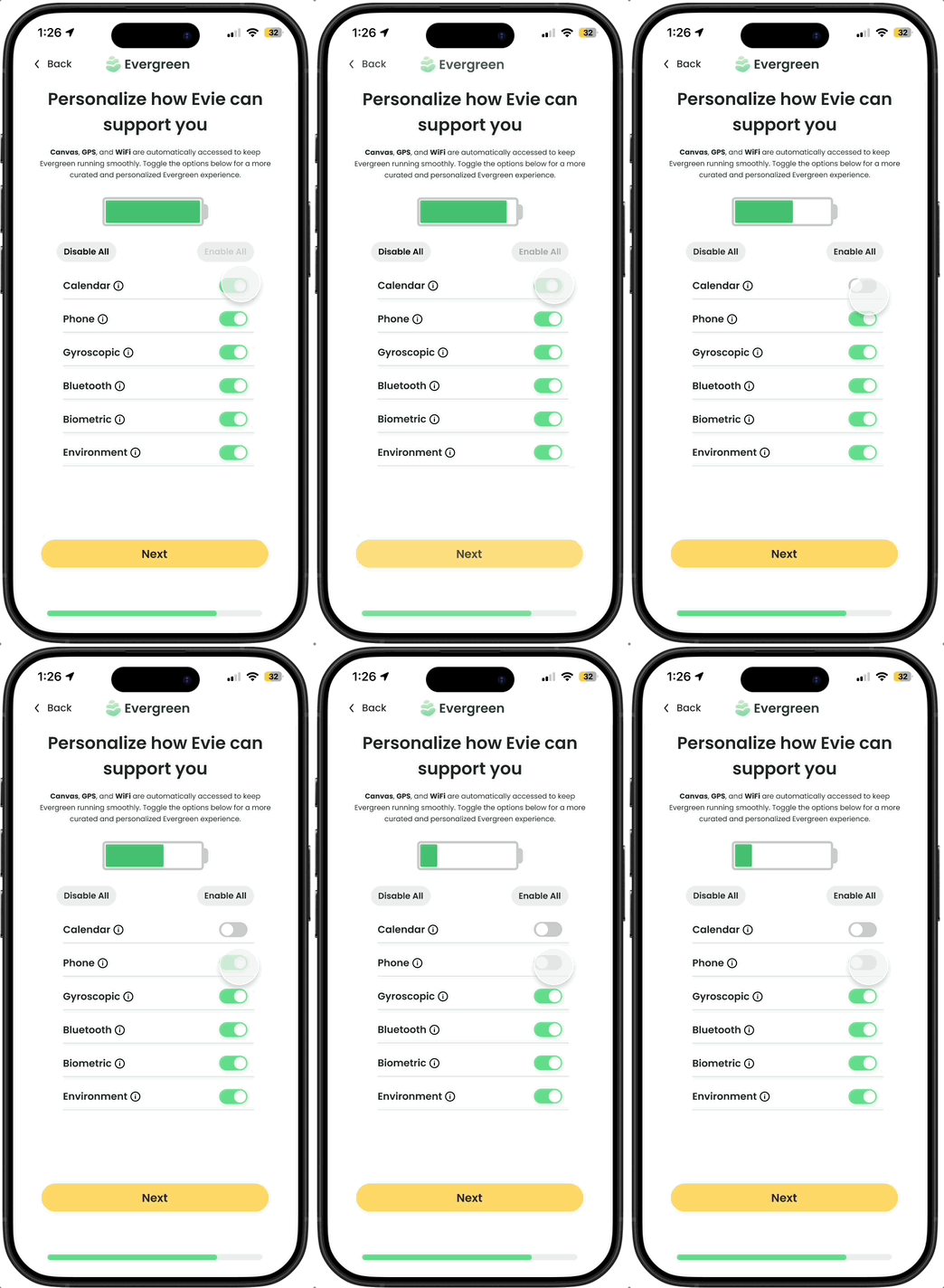
My new designs lost the sliding designs' tiers to reduce the cognitive load of deciding which permissions to enable. I experimented with creating distinct tiers but instead opted to add enable all and disable all buttons for the same two-tier concept but with a simpler, more intuitive design.
Enable/Disable All
Tiers
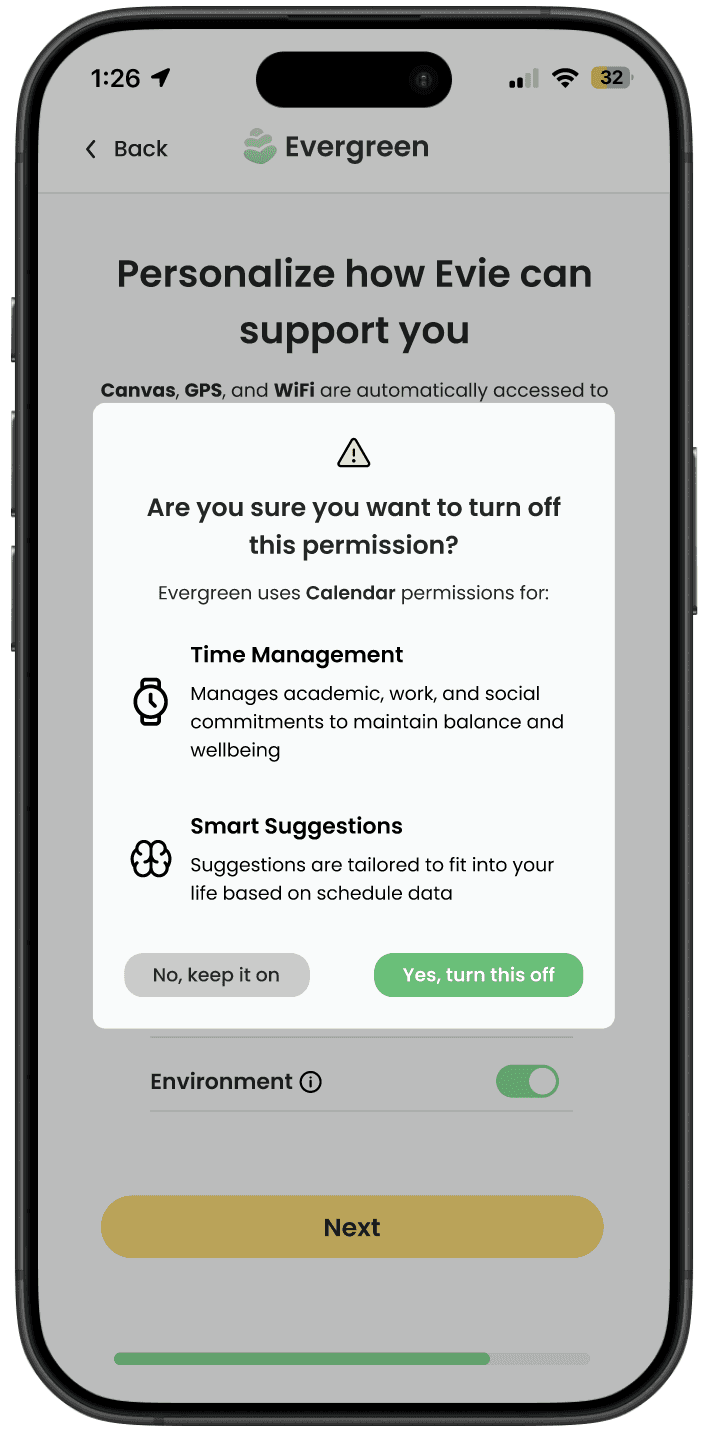
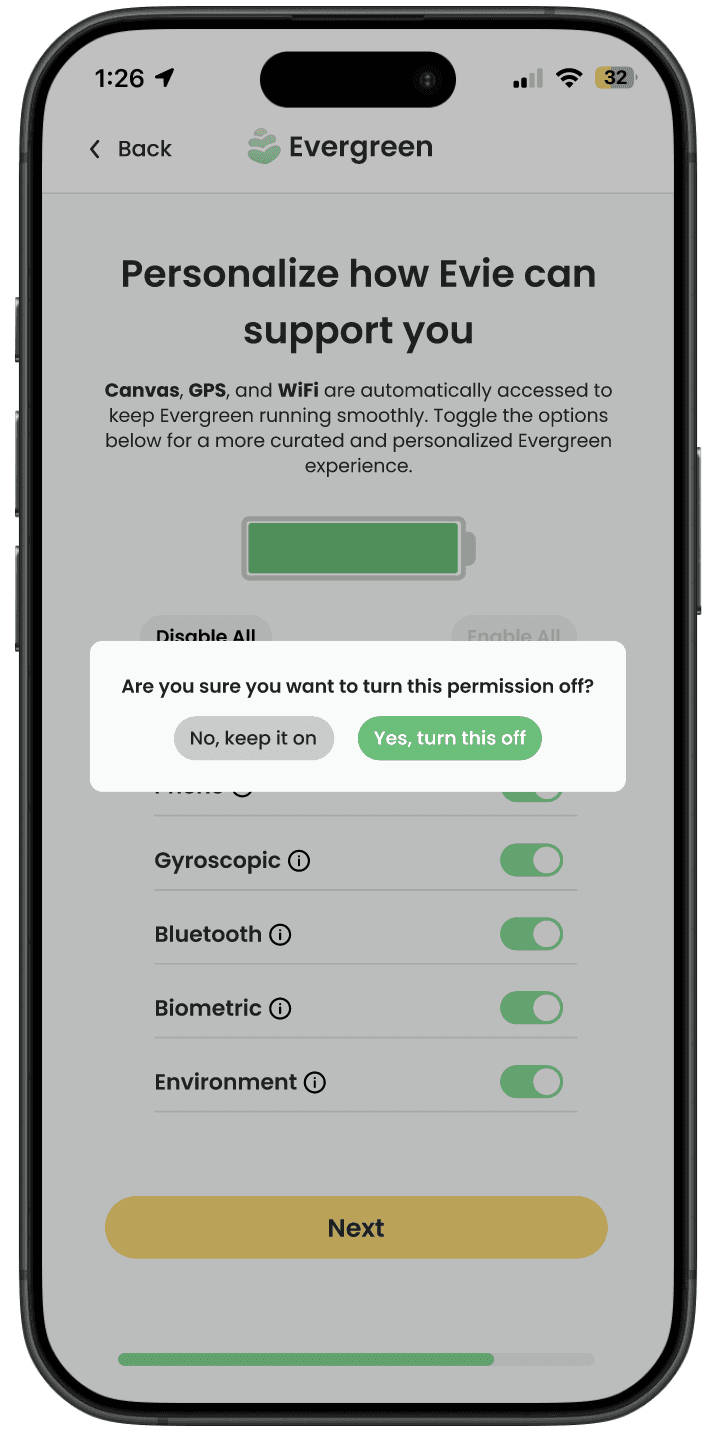
Discouraging disabling permissions
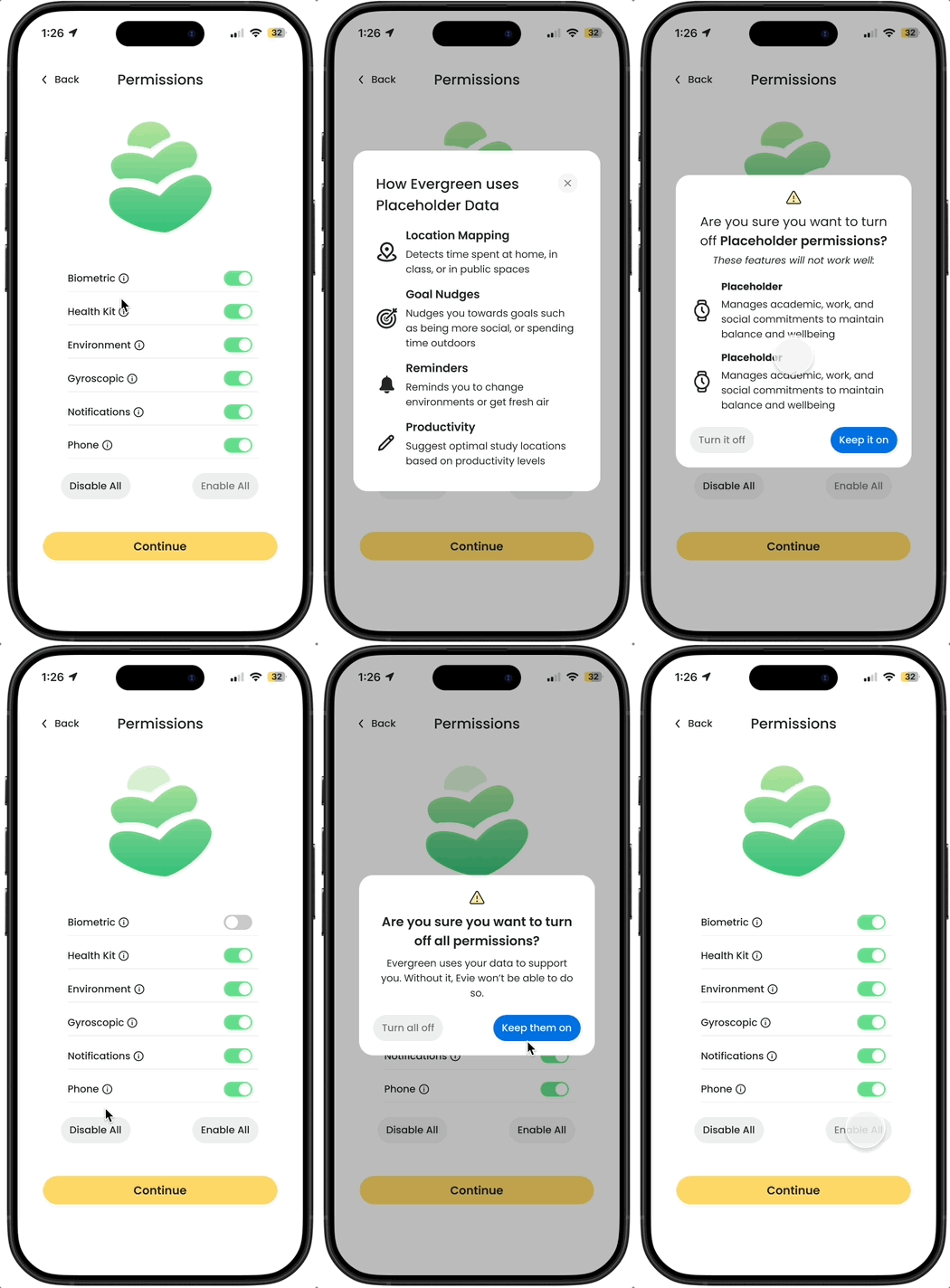
To create more friction for users disabling permissions, I designed a pop up before a user could disable a permissions. I tested 2 designs and 100% of users preferred the more detailed pop up.
100% of users preferred the more detailed pop up
The Final Design
The Evergreen Permissions Page
The final design is a clean, intuitive permissions screen that balances data transparency while encouraging users to enable more permissions.
I made minor visual changes in the final design switching from a battery visual to the Evergreen logo for a more cohesive look. I also further developed our style guide and changed the buttons to match our primary and secondary CTA colors.
CONCLUSIONS
I owned the design of the permissions screen over the course of three terms. Given the ambiguous nature of Evergreen, I learned how to evolve the design throughout the changing stages of the project.
Some lessons from this project
User testing
I learned first hand the importance of user testing early and often. Due to not testing a core feature of my permission screen (the slider), I was forced to pivot on a design I had spent 10 weeks developing.
Collaboration
Being on this project for 3 terms, I worked with 3 different teams. Additionally, Evergreen had 5+ regular partners and I actively sought new external mentors. This gave me tons of opinions to work with, which though difficult to consolidate at times, was crucial in designing a balanced final product.
Thanks for reading :)
Back to cases